

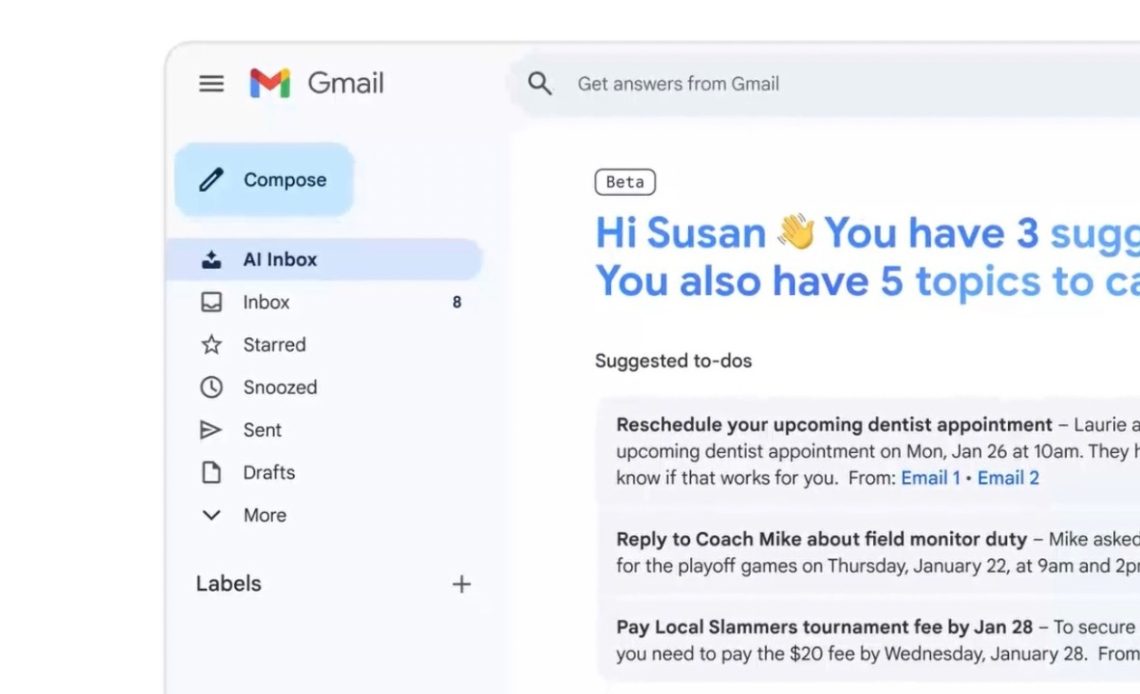
Google is adding the AI Inbox in Gmail on Android and iOS after introducing it on the web back in March this year. The feature is designed to cut through email clutter by surfacing the most important messages first in Gmail. Also, Google is making the Help Me Write feature more personalised with the latest enhancements.
Google is rolling out AI Inbox in Gmail on Android and iOS to Google AI Ultra subscribers. The system highlights key updates, urgent reminders, and actionable to-dos, giving users a concise snapshot of what actually needs attention.
AI Inbox prioritizes emails based on signals such as frequent contacts, people saved in your address book, and inferred relationships from message content. This allows high-priority items like upcoming bills, appointment reminders, or time-sensitive requests to automatically rise to the top of the inbox. Google says the analysis happens securely, with privacy safeguards in place to keep users’ data under their control.
9to5Google notes two access points for AI Inbox in Gmail on Android and iOS, including the navigation drawer where “AI Inbox” appears below Inbox, similar to the desktop implementation. The second access point is a more prominent one, in Gmail’s bottom bar.
Help Me Write in Gmail Gets More Personal
Google has also added two new personalization enhancements to Help Me Write in Gmail:
- Tone and style personalization: Help me write can also now create personalized email drafts that match the tone and style of your previously written emails.
- Topic contextualization: The feature can now connect to Google Drive and Gmail based on your prompt. It will then use the context from these apps to automatically insert relevant information into the email draft, reducing the time you spend toggling between apps to find specific details.
With these new changes, users will save valuable time currently spent on cross-Workspace app context switching to reference correct sources, typing, copy-pasting, and formatting. Just type a short prompt, and delegate the draft writing for common use cases, including:
- Responding to inquiries from customers and partners
- Distributing information, documents, or materials to collaborators
- Reporting progress, milestones, and project-related issue to leadership
- Seeking assistance or answers from team
- Providing or asking for feedback from peers
- Sharing team announcements or progress reports to the organization
- Introducing new projects
- Exploring potential partnerships
- Teacher-parent- communications
- Grant proposals
Author: Abhishek Malhotra
Source: The Mobile Indian
Reviewed By: Editorial Team