

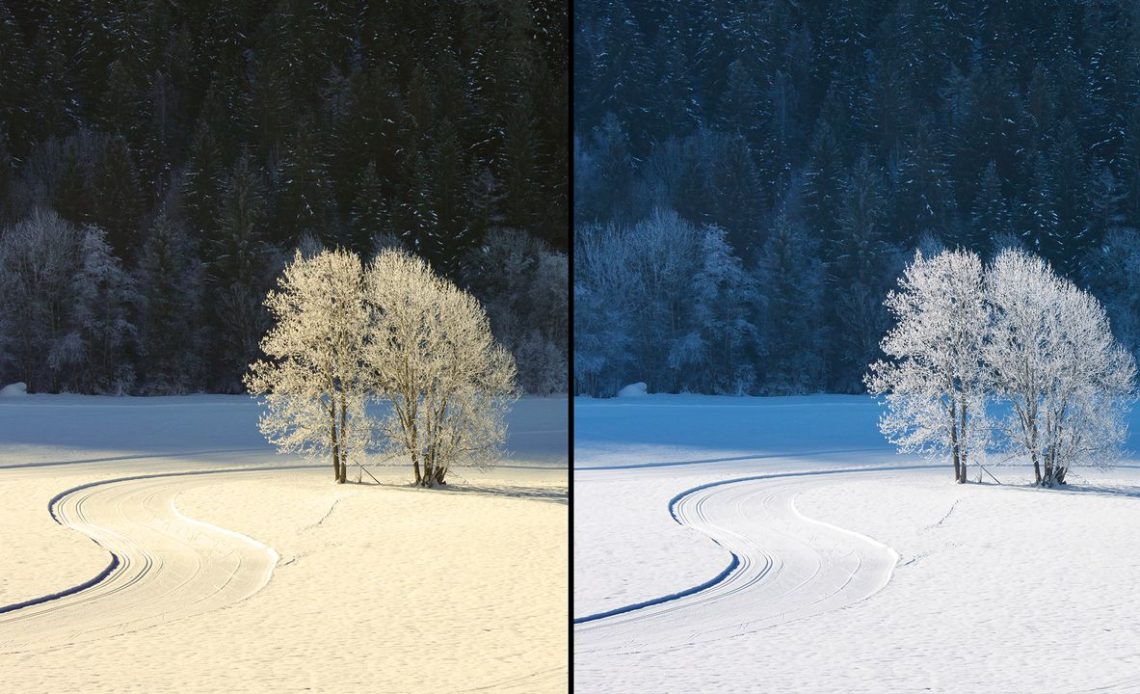
Snow is one of the most challenging subjects to photograph correctly. While it appears white to the eye, cameras often interpret snowy scenes as blue, grey or overly warm – especially in winter light.
This appears because incorrect white balance (WB) exaggerates color shifts, while snow reflects surrounding light more intensely than most surfaces. Even a small adjustment error can change the mood of your images.
Understanding how to achieve correct white balance in snow photos will instantly elevate your winter photography. Clean whites, balanced tones and accurate color help your images feel natural while preserving atmosphere.
Correcting white balance doesn’t always mean removing all color; cooler tones or warmer yellow hues can be used intentionally to enhance mood, as long as the choice is creative rather than unwanted and accidental.
(If you’re new to this topic, here’s a simple explanation of what is white balance in photography is and why it matters.)
Follow these five simple editing steps – demonstrated in Affinity Photo 2.0, but easily transferable to other editing software like Photoshop – to regain control over color, fix unwanted tints and ensure that your snow photos look exactly as you intended, before the next snowfall arrives.
Before and After
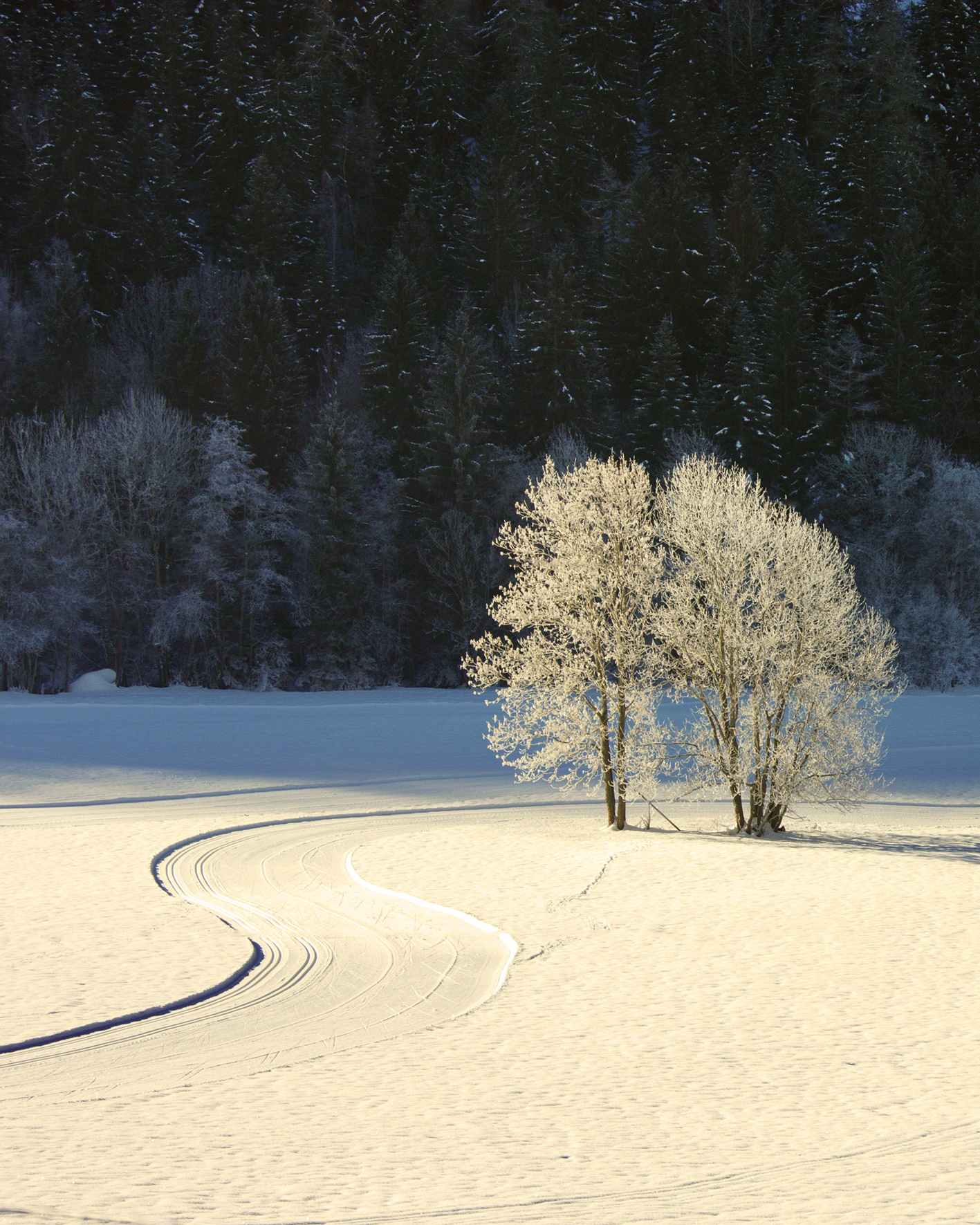
The visual language appears to be off as a yellow tint dominates the snowy landscape
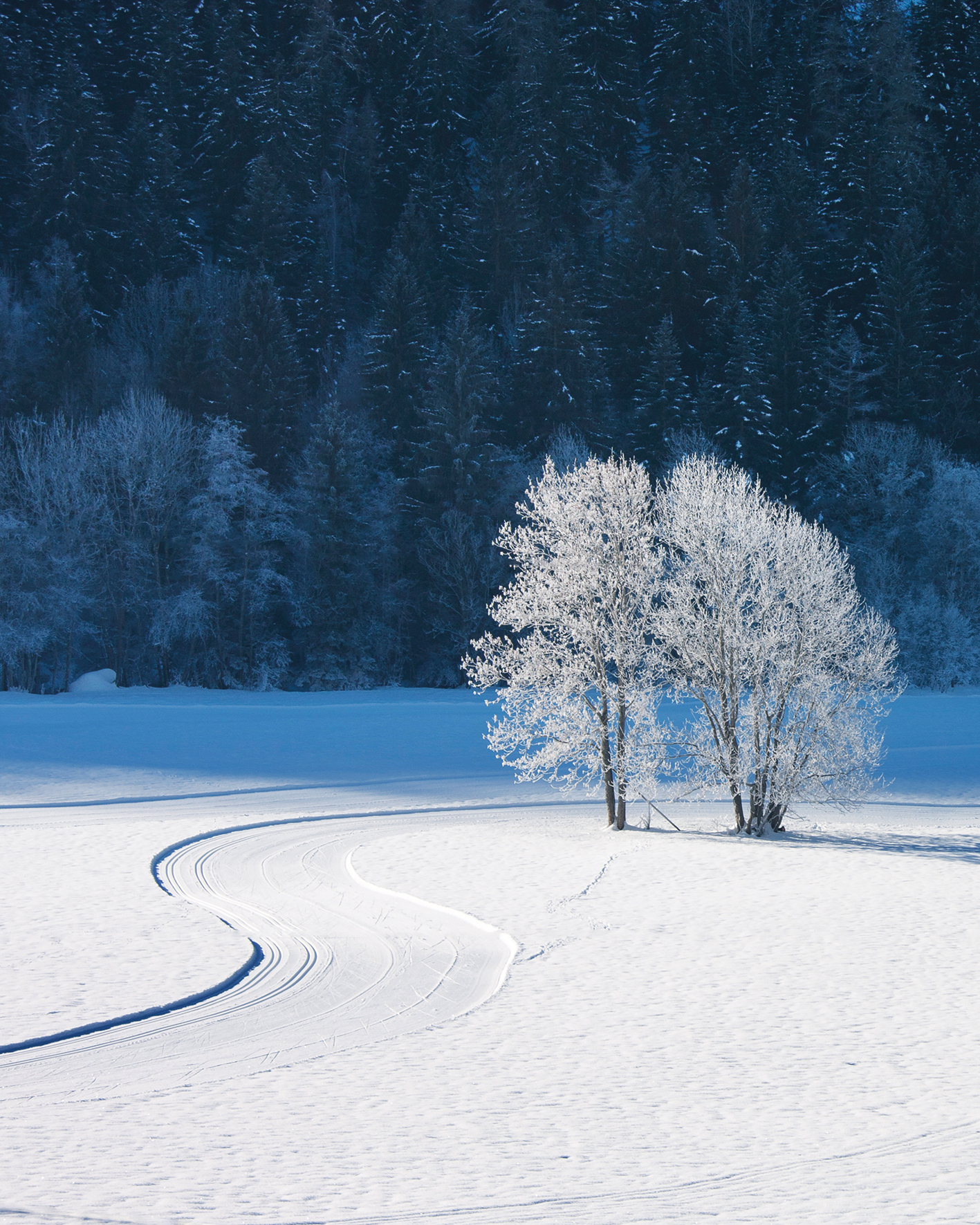
Due to the adjustments made in Affinity Photo, the image now displays more natural colors
Editing tutorial
1. Open WB settings
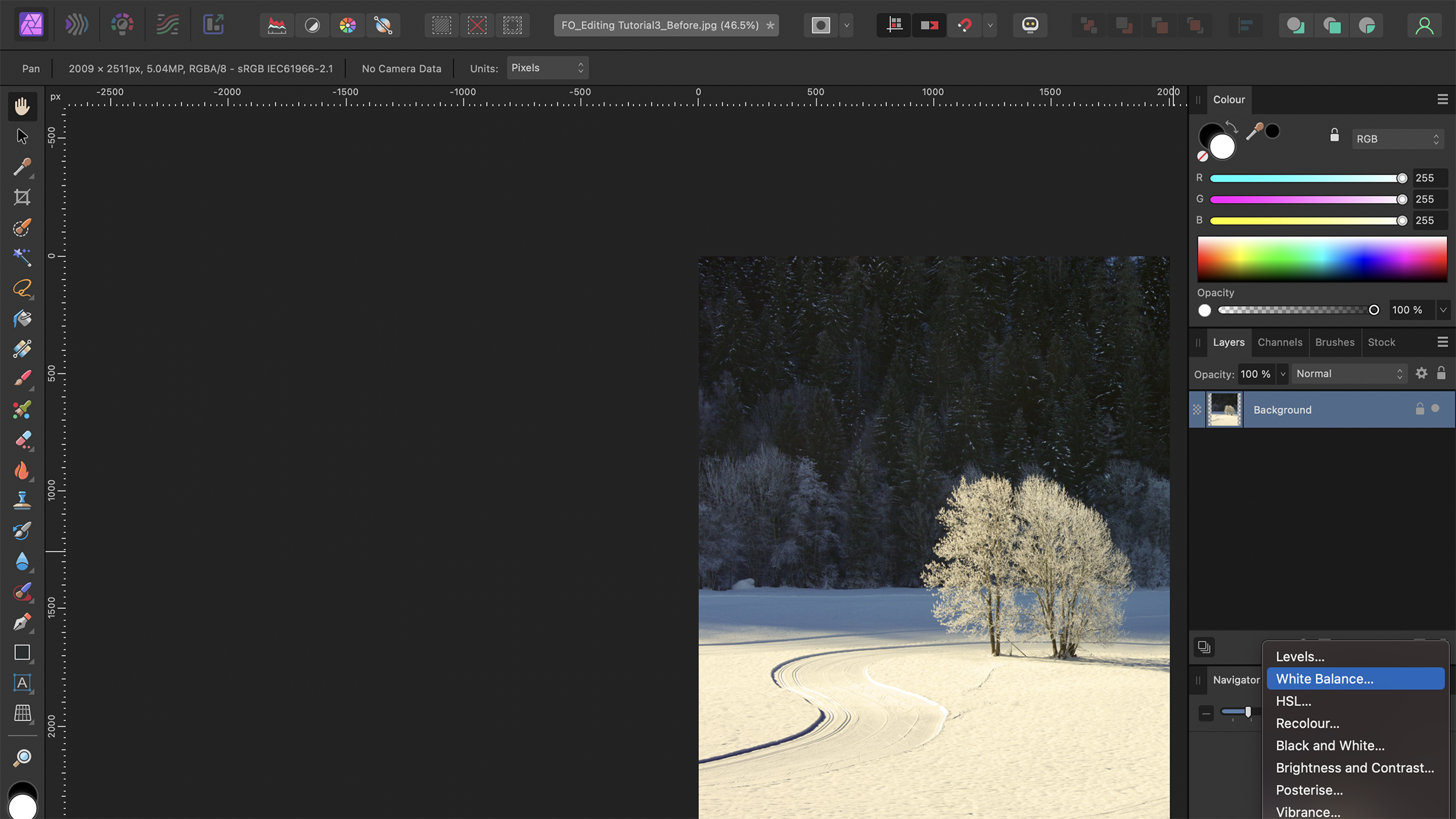
When working with RAW images in Affinity Photo 2.0, the Develop Persona option opens automatically when you open the image. This gives you access to the White Balance control sliders. For JPEGs, simply add a White Balance Adjustment Layer above your Background Layer.
2. Select the reference hue
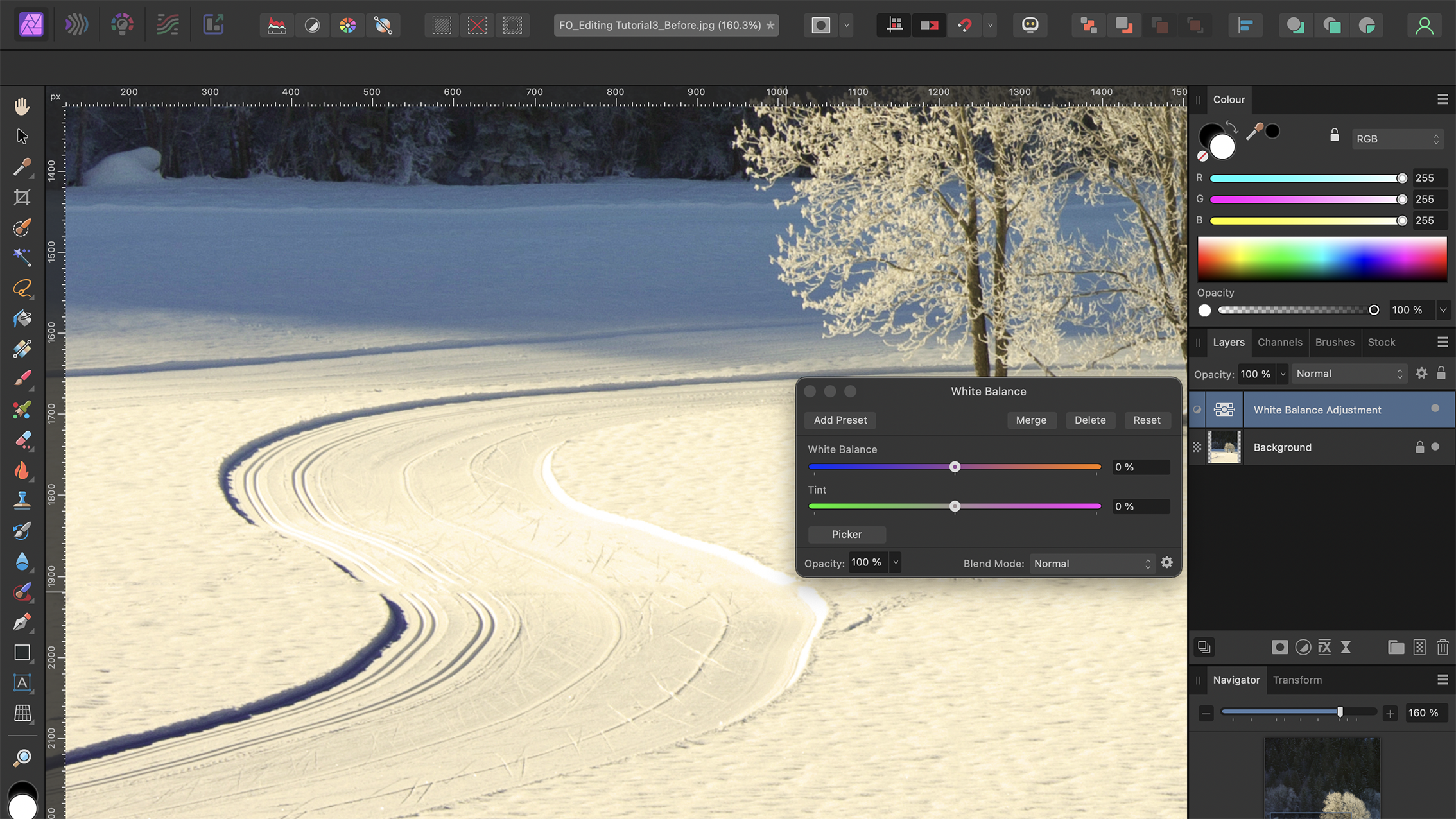
Select the Picker tool located at the bottom-left of the White Balance dialog box. Click on an element of the photograph that appears relatively neutral – it is best to focus on white and grey frame areas. This process may require a few attempts to get right.
3. Set the balance
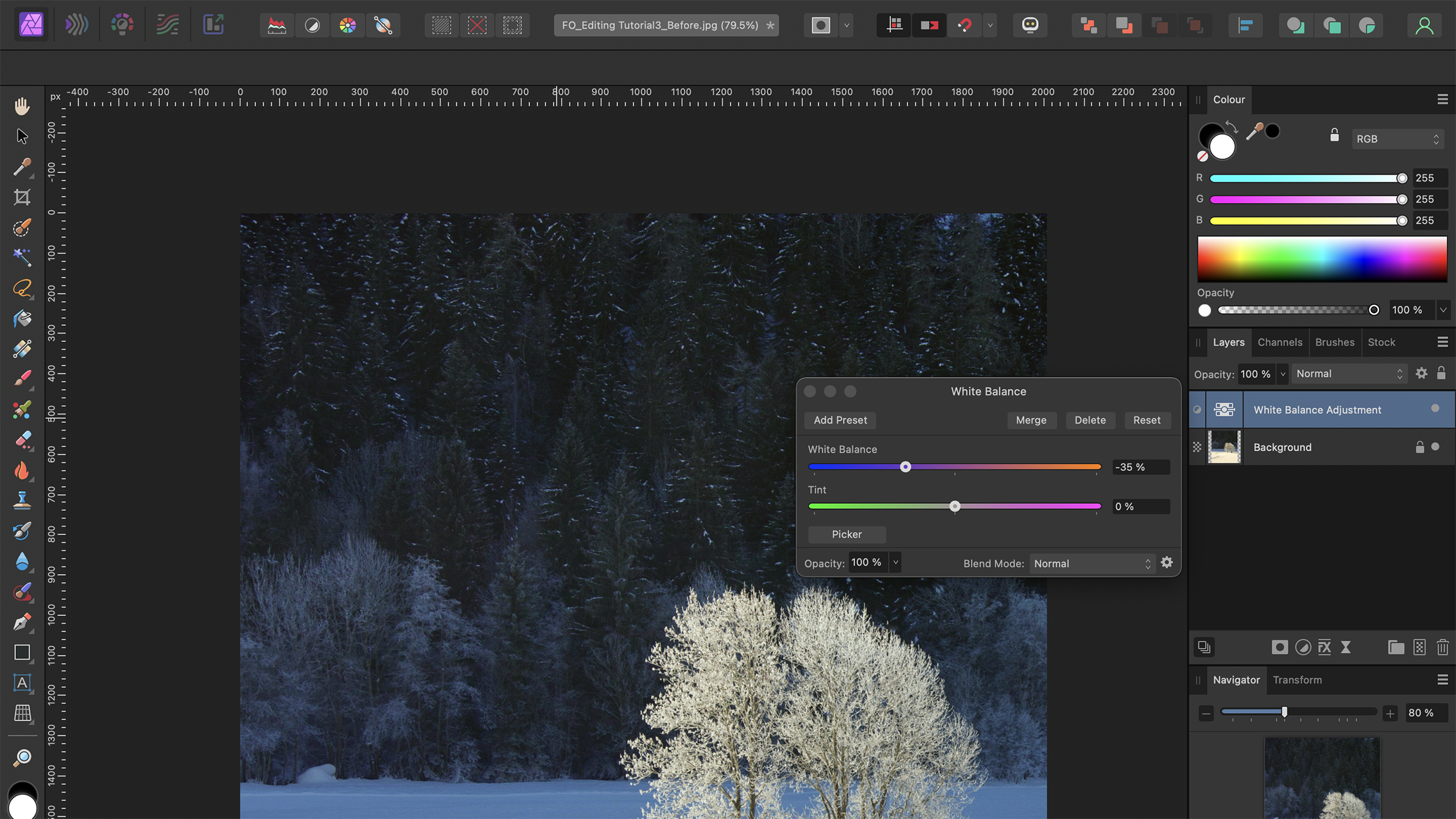
Affinity Photo automatically adjusts the White Balance and Tint sliders based on the chosen reference color. It’s beneficial to experiment with the Picker tool to see how different selections affect the image. Once you’re satisfied with the result, close the dialog box.
4. Control highlights
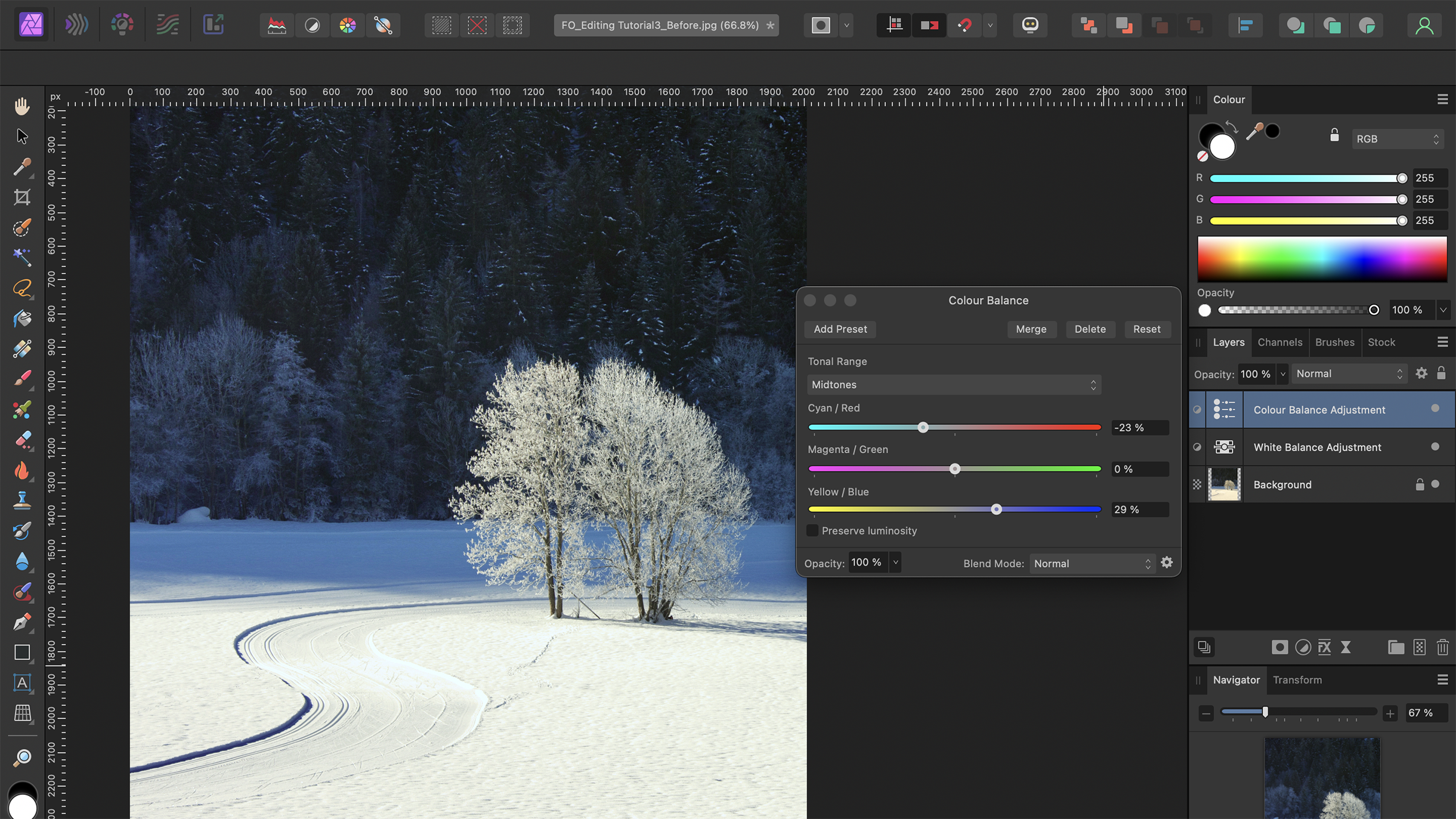
Next, add a Color Balance Adjustment Layer and set the Tonal Range to Highlights. This enables you to control the colors of the highlights. To introduce a cooler tint, move the Cyan/Red slider to the left and the Yellow/Blue slider to the right. To create warmth, do the opposite.
5. Boost colors
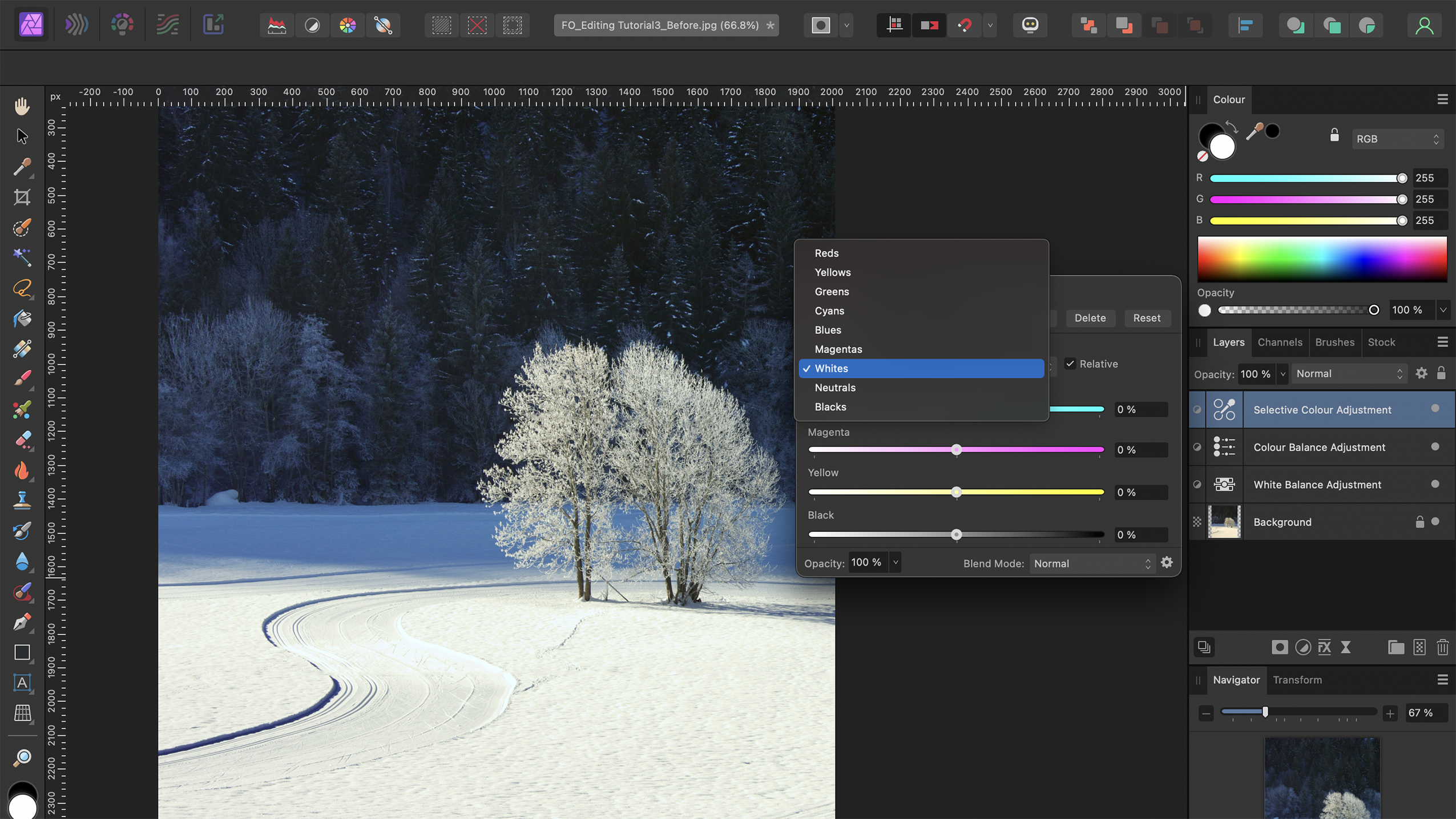
To edit specific hues, add a Selective Color Adjustment Layer. Look where you might benefit from a boost to enhance color contrast and where you can minimize it to make it more neutral. Select a color and adjust the sliders. Work with the Neutrals and Whites options to optimize the snow.
Key tip
Don’t underestimate contrast
When working with snowy scenes, adding either subtle or strong Contrast can enhance the visual impact. As a final step, add a Curves Adjustment Layer and tweak the tones to your preference – both approaches have their merits.
Author: Kim Bunermann
Source: DigitalCameraWorld
Reviewed By: Editorial Team