


Another one of the under the radar but valuable privacy changes to come with iOS 14 and iPadOS 14 is the option to mask your device’s Wi-Fi address. Read along for how to easily use a private Wi-Fi MAC address on iPhone and iPad.
Each device you use that connects to the internet has a media access control address or MAC address. In an iOS 14 privacy and security improvement, Apple is making it simple to use a private Wi-Fi MAC address with your iPhone and iPad.
The feature makes it more difficult for your device and activity to be tracked when using wireless networks.
How to use a private Wi-Fi MAC address on iPhone and iPad in iOS 14
- On your iPhone or iPad, open the
- Tap
- Tap the blue “i” next to a network (one you’re already connected to or not)
- Tap the toggle next to to mask your iPhone or iPad’s Wi-Fi MAC address
- If you’re switching this on while already connected to a network, tap to finish the process (you’ll automatically reconnect to the Wi-Fi network in a moment)
Here’s how these steps look:
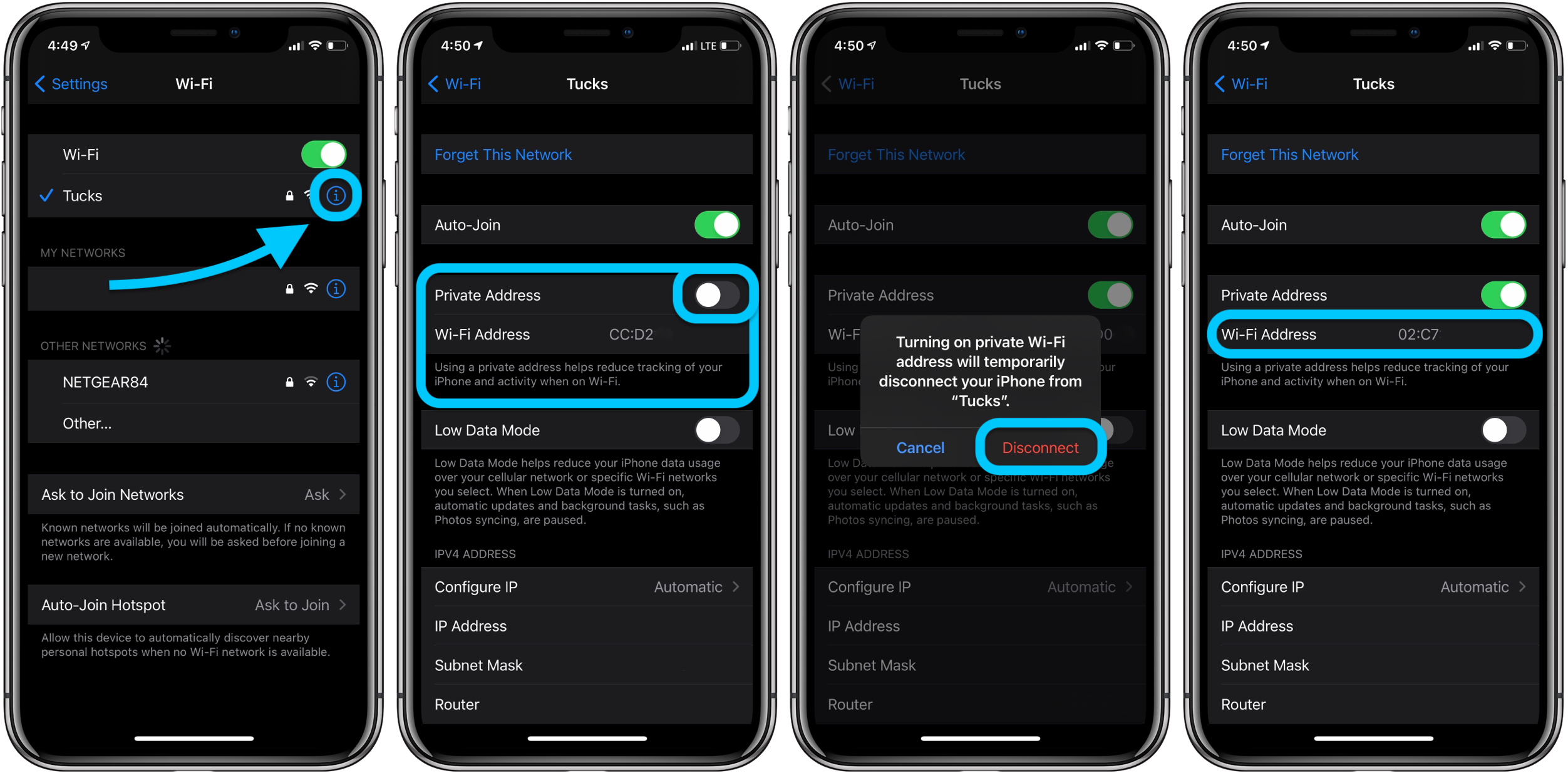
That’s it! You should now see the new private address in place of your iPhone or iPad’s actual Wi-Fi MAC address.
- Hands-on with 250+ iOS 14 beta features and changes [Video]
- iOS 14: Here’s how to use the new iPhone home screen widgets
- iOS 14: How to do Picture in Picture video multitasking on iPhone
- iOS 14: How to watch 4K YouTube videos on iPhone, iPad, and Apple TV
- iOS 14: How the compact call interface works on iPhone
- Beta regrets? Here’s how to downgrade from iOS 14 to iOS 13
Author: Michael Potuck.
Source: 9TO5Mac